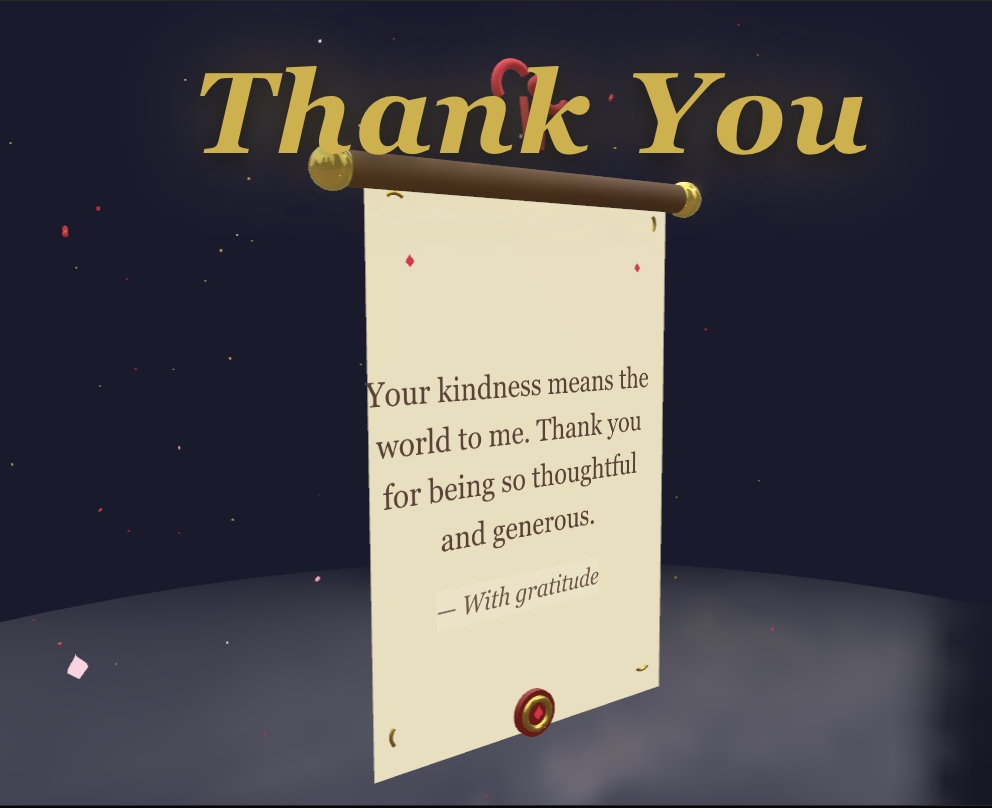
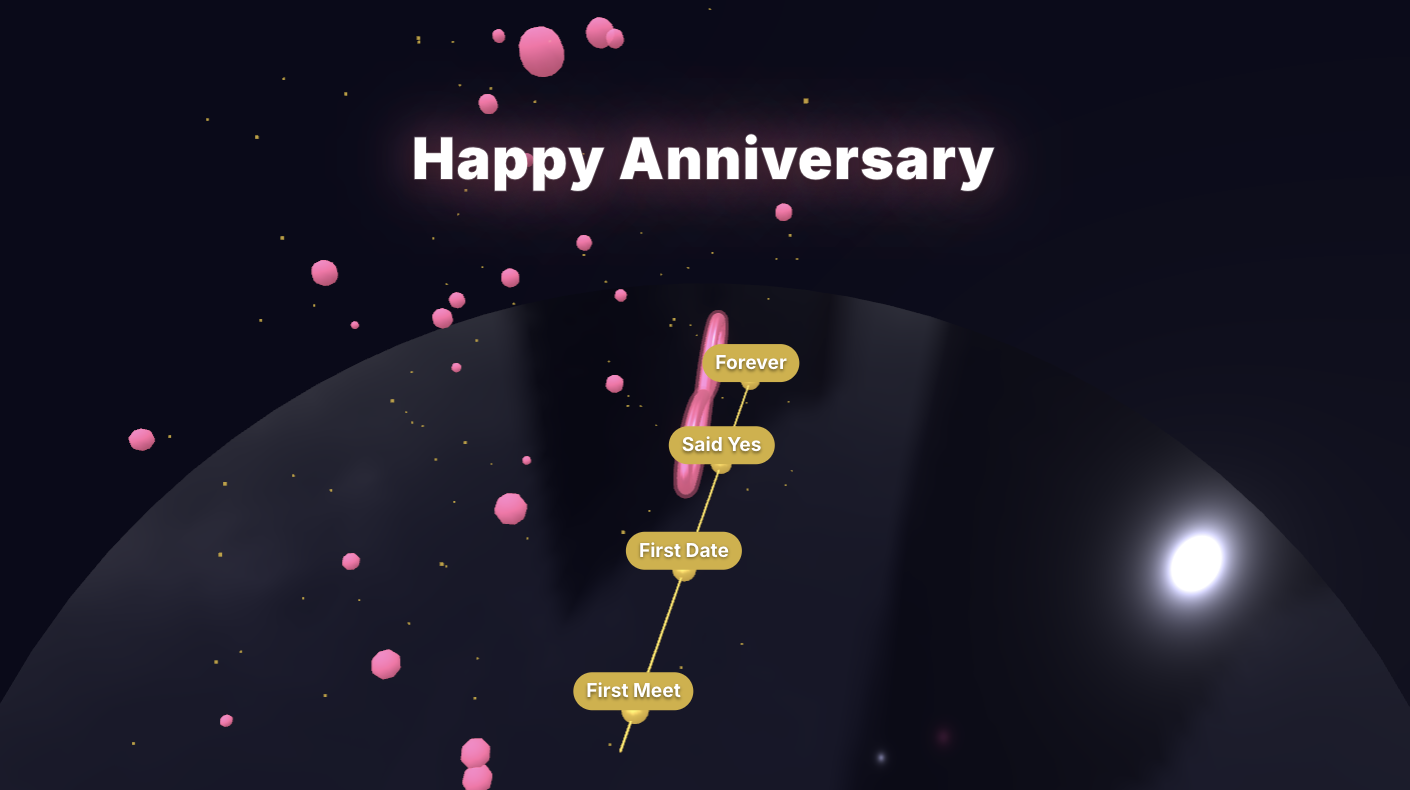
WhatsApp is where most of us keep in touch with the people we care about. Family group chats, old school friends, work colleagues, and relatives living halfway across the world all live in the same app. So when a birthday or festival rolls around, it makes sense to send your greetings there too. The problem is that a plain "Happy Birthday!" text gets lost in a sea of other messages. A real greeting card, on the other hand, stops people in their tracks.
This guide walks you through exactly how to create a digital greeting card and send it on WhatsApp, whether you are messaging one person or an entire group.
Why Digital Cards Work So Well on WhatsApp
Paper cards are lovely, but they take days to arrive and need a mailing address you may not even have. A digital card solves all of that:
- It arrives instantly, anywhere in the world, for free.
- It can include animation, music, and a personal message.
- The recipient can keep it, replay it, and share it with others.
- You can send the same card to many people without buying ten copies.
For someone living abroad, a digital card might be the only realistic way to send something that feels like more than a text.
Step 1: Create Your Card
Before you can share anything, you need a card worth sending. The fastest way is to start from a ready-made design and personalize it.
- Open MomentoCard and browse the templates library.
- Pick a design that fits the occasion, like one of the birthday cards or holiday cards.
- Replace the placeholder text with the recipient's name and your own message.
- Add a photo if you want to make it more personal.
- Preview the animation to make sure everything looks right.
The whole process usually takes under five minutes, which is less time than it takes to find a good photo to forward.
Step 2: Choose How to Share It
There are two main ways to send a card on WhatsApp, and each has its place.
Sharing as a Link
A link is the cleanest option. When you finish your card, you get a shareable web link. Copy it, open the chat in WhatsApp, paste it, and send. The recipient taps the link and the card opens in their browser, full screen, with animation intact.
This method is best when:
- You want the full animated experience preserved.
- The recipient has a working internet connection.
- You are sending to several people and want one tidy message.
Sharing as a Video or Image
If you would rather the card play directly inside the chat, download it as a video (or save a frame as an image) and attach it like any other file.
- Use the Download option to save the card as an MP4 video.
- In WhatsApp, open the chat and tap the attachment (paperclip or +) icon.
- Choose Document to keep full quality, or Gallery to send it as standard media.
- Add a short caption and send.
Sending a video as a "Document" instead of through the gallery stops WhatsApp from compressing it, so the card looks crisp instead of blurry.
Step 3: Sending to a Group
Group chats are perfect for shared occasions like a family Diwali or a friend's surprise birthday. The steps are identical: open the group, paste the link or attach the video, and send. A quick tip for groups is to send the card with a short line of context, such as "Made this for Mom's 60th, tap to watch," so people know what they are opening.
Sending to Someone Far Away
If the person you are messaging is in another country, a link is almost always the better choice. Video files can be large, and on a slow or expensive mobile connection they may take a long time to download or even fail. A link is tiny, sends instantly, and lets the recipient open the card whenever their connection is strong. It also works the same on iPhone, Android, and desktop WhatsApp.
Troubleshooting Common Problems
Even simple sharing can hit a snag. Here is how to fix the most common ones.
- The card link won't open. Make sure the full link was pasted (long links sometimes get cut off when copied). Ask the recipient to tap and hold the link and choose "Open in browser."
- The video is too large to send. Download a shorter version if available, or send the link instead. As a fallback, send a single image frame of the card.
- The animation doesn't play in the chat. WhatsApp shows a still preview until the video is tapped. Ask the recipient to tap it to play, or share the link so it opens in a browser.
- It looks blurry. Resend it as a Document rather than through the gallery to avoid compression.
Frequently Asked Questions
Is it free to send a greeting card on WhatsApp? Yes. Creating a card on MomentoCard and sharing the link or video on WhatsApp does not cost anything.
Does the recipient need an account to open the card? No. A shared link opens in any web browser, and a video plays inside WhatsApp without any sign-up.
Can I send the same card to many people? Absolutely. Once you have the link, you can paste it into as many chats or groups as you like.
Will the card work on an iPhone? Yes. Both the link and the video work the same on iPhone, Android, and desktop WhatsApp.
Sending a greeting on WhatsApp takes seconds, but a thoughtful card turns that quick message into something the person will actually remember. Next time an occasion comes around, spend a few minutes making a card that feels like you put your heart into it, then share it with a tap.