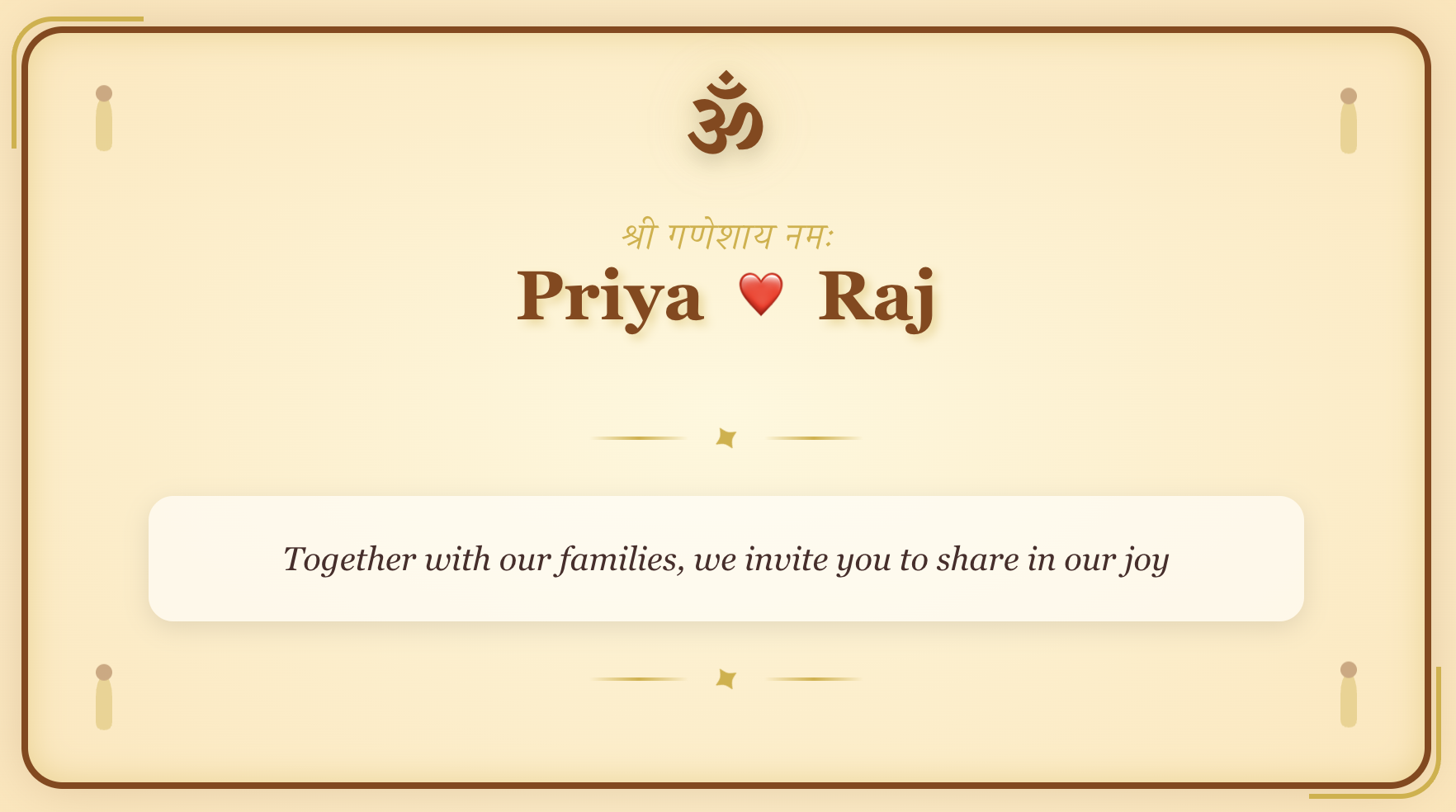
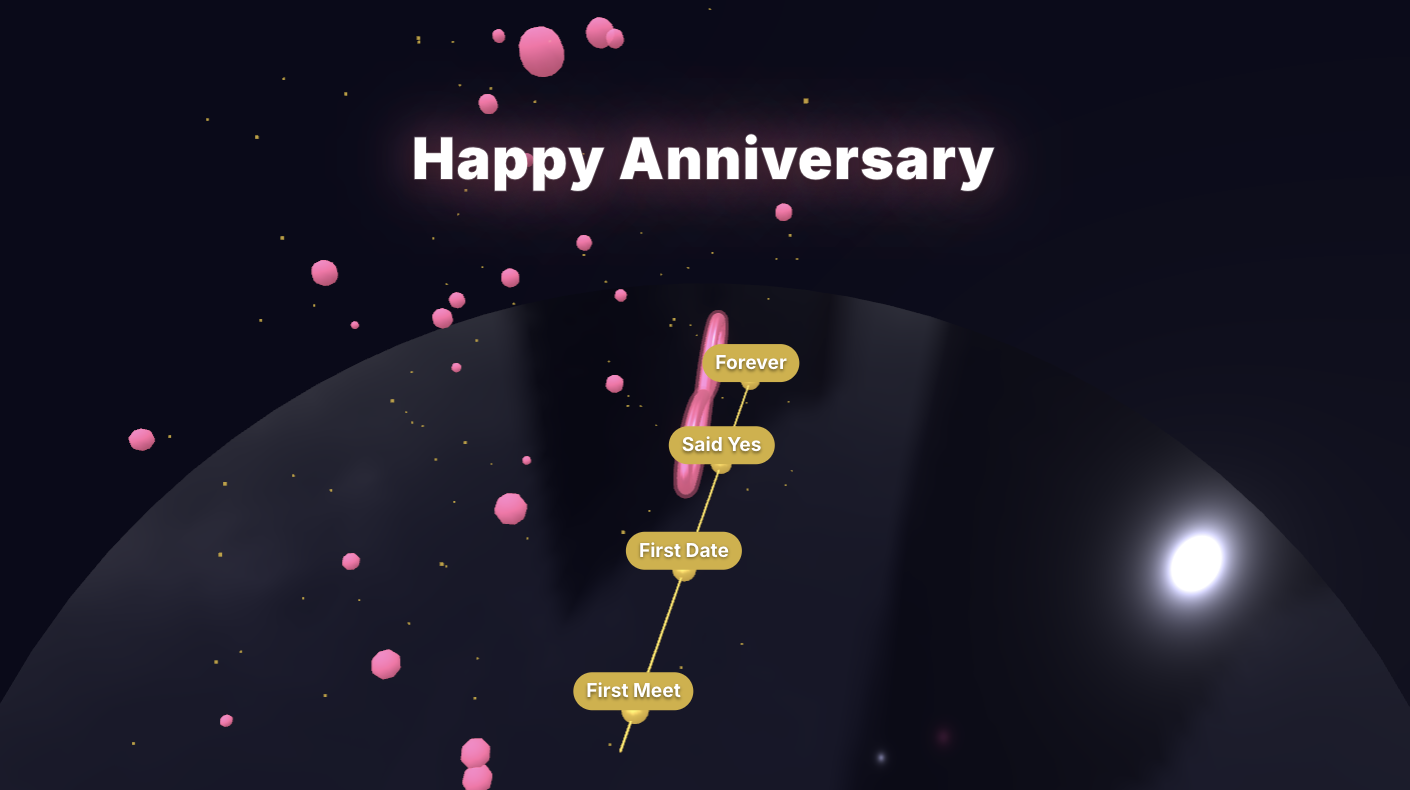
A 3D card is harder to ignore than a flat one. It opens. It moves. It feels a little like opening an envelope — except the envelope is on a phone screen and the message lives forever in a link you can re-send next year.
You do not need design skills to make one. You need ten minutes and someone you want to send a card to.
Here is exactly how to do it.
What we mean by a "3D" greeting card
A 3D card is a digital greeting card that uses depth, perspective and motion the way a paper card does — except the page turns, the foil glints, the confetti drops, and you can rotate it with your finger. On MomentoCard, each 3D template is a real 3D scene running in the browser. No app to download. No watermark on the free version. No upload of huge files.
The card lives at a private link. Whoever you send it to taps once, and it plays.
Step 1 — Pick a 3D template that matches the moment
Open the 3D templates library and scroll. You will find designs grouped by what they are for: birthday cards (cake reveals, balloon physics, candle blow-out), wedding cards (envelope unfolds, rings, save-the-dates), anniversary cards, holiday cards for Diwali, Eid, Christmas and New Year, plus baby, graduation and thank-you cards.
Pick the one that feels closest to the person, not the one that looks most impressive on its own. A loud confetti animation lands flat if the person you are sending it to is quiet. A clean, slow envelope unfold can mean more than ten effects stacked together.
Step 2 — Replace the photos
Click into the card. The editor opens with the template's example content. Tap any photo to swap it for one of yours — from your phone gallery or by drag-and-drop on desktop. The 3D scene reshapes around your photo automatically. There is no "fit" or "crop" panel to fight with for ten minutes.
If you want to remove a messy background from a photo first, MomentoCard has a built-in photo editor with one-click background removal. Use it if the original photo has clutter behind the person — the card looks ten times better when the subject is clean.
Step 3 — Write the message
This is the part that matters more than the design. A great template with a phoned-in message is a phoned-in card. A simple template with a real message is a card someone will screenshot.
Three rules that almost always work:
- Name the moment. "Happy birthday" is fine. "Happy birthday — your thirtieth, finally" is better.
- Say one specific thing. Not "you're amazing" — "the way you stayed on the phone with me for two hours last Tuesday."
- End on a small promise. "Coffee on Saturday." "Dinner is on me when I'm back." Something that turns the card into a beginning, not an ending.
If you are stuck for words, our guides on birthday wishes, anniversary wishes and wedding messages have hundreds of starting points.
Step 4 — Animate (or don't)
Every 3D template comes pre-animated. The card already knows how to open, how the camera moves, how the confetti falls. You do not need to do anything for the animation to work.
If you want to tweak it, Studio gives you a Canva-style timeline where you can drag the length of each animation, add or remove effects, and add background music. Most people leave the default and ship in five minutes. Both are correct answers.
Step 5 — Add music (optional, but underrated)
A song the person loves, in the background of a card you made for them, is one of those small choices that turns a digital thing into a felt thing. MomentoCard lets you pick from a royalty-free library or upload a short clip. Keep it short — 15 to 30 seconds is enough.
Step 6 — Preview, then share
Hit Preview. Watch the whole card once on your own phone — the way they will see it. Catch the typo now. Catch the photo that loaded the wrong way. Catch the moment the music feels too loud.
Then hit Share. You get a link. Send it:
- On WhatsApp — paste the link in the chat. It unfurls with a preview thumbnail. (Full guide: how to send a greeting card on WhatsApp.)
- As an Instagram or Facebook message — same link, same way.
- By email — paste, send, done.
- As a downloadable video — for people who only check WhatsApp Status or Instagram Stories, MomentoCard lets you export the card as an .mp4.
Why a 3D card is different from a flat image
A flat e-card is a screenshot. A 3D card is a small experience. The person who receives it does not just see your message — they spend ten or fifteen seconds with it. They watch it open. They sometimes scroll back and watch it again.
That is the part that matters. The whole point of sending a card has always been "I made the person stop for a minute and think of me." A 3D card does that better than almost anything else you can send through a phone.
Common questions
Do I need to install anything? No. It runs in the browser, on any modern phone or laptop. Your recipient also does not need to install anything to view the card.
Is it really free? Yes — start free. Many templates and features are completely free. Premium templates and effects are unlocked individually if you want them.
Can I edit the card after I send it? Yes. Open the card from your dashboard and edit. The same link keeps working — the recipient sees the updated version next time they open it.
Will it work on an old phone? The 3D engine has a fallback for older devices. The card still plays — just with simpler effects.
Can I make a card in a language other than English? Yes. MomentoCard is fully translated in 15 languages including Hindi, Arabic, Spanish, French, Japanese and Chinese.
Start one now
Browse the 3D templates, or jump straight into Studio and build from scratch. Whatever you make, the goal is the same: a card the person opens once, smiles at, and keeps the link to.
That is what we are trying to help you make. The rest is just clicks.